Scan a barcode, sell the item
Switch barcode reading on and give each product its code once. After that, a scan at the till adds it to the sale.
How it works
From a code to a sale
Switch it on once, give each product its code, then scan.
Switch it on
In Settings, switch on Enable barcode reading. It is off until you do, and it puts the scan or code box on the till.
Give each product its code
In Items → Products, open an item. Go to Advanced settings and scan its code into Barcode or product code.
Scan at the till
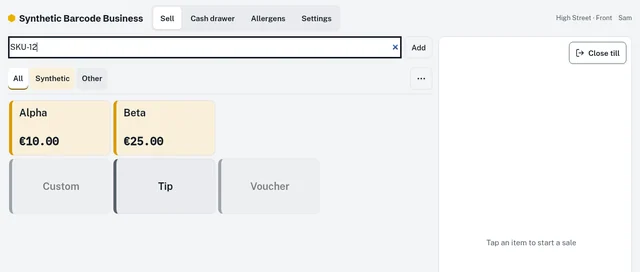
On the till, scan the code and the item is added to the sale.
No scanner to hand
Type the code into the code box on the till. The item is added the same way.
Around it
What works with your codes
Bring in a list you already have
In Items → Products, add one product at a time or select Import and choose From a file.
Stock follows the sale
Fill in What it uses from stock on a product. Each sale then takes that off your stock, and a voided sale puts it back.
Still a tap till
Barcodes are for the items that have them. Everything else is sold by tapping it on the till, as before.
Hear when it runs low
Set Alert at on a stock item and Bees-X tells you when the number gets there.
Read next
More on products and stock
Questions we get asked
Which barcode scanner do I need?
We do not sell scanners or publish a list of models. Ask us before you buy one and we will check it with you.
Why is there no code box on my till?
Barcode reading is off until you switch it on. In Settings, switch on Enable barcode reading.
Can I sell without barcodes?
Yes. Tap the items on the till. Barcodes are there for shops that want them.
What if the scanner is not working?
Type the code into the code box on the till and the item is added.
Where do I put the code on a product?
In Items → Products, open the item. Under Advanced settings, scan or type the code into Barcode or product code.
Something else? Every question is answered in Help.
30 days freeNo credit card
Start free